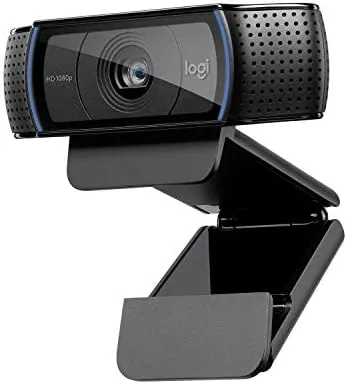

There is a reason the Logitech C920 HD Pro has become the answer you get when you ask about a webcam. It has been the reference for the video call camera for close to a decade, outliving rivals who simply vanished from the shelves. The twist is that recommendations can outlive the product itself, so the honest question now is whether the C920 still earns its seat on a modern, busy desk. This review answers that after a full month of using the C920 as the only camera on a home office desk.
Before the details, the disclosure: this article contains affiliate links. If you buy through the link, the site earns a small commission at no cost to you, and it does not change what I test or recommend in this Logitech C920 review.
Design and Build
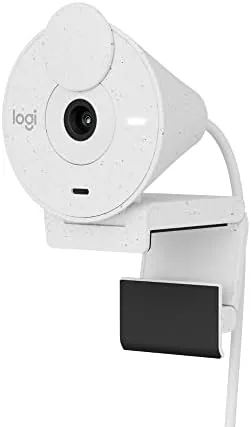
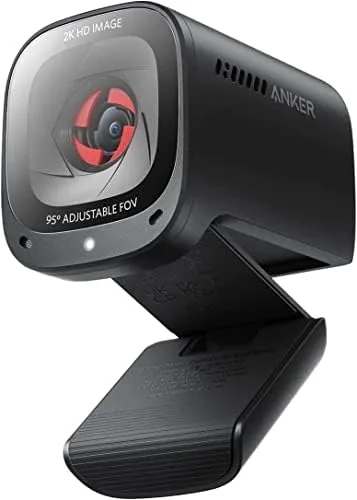
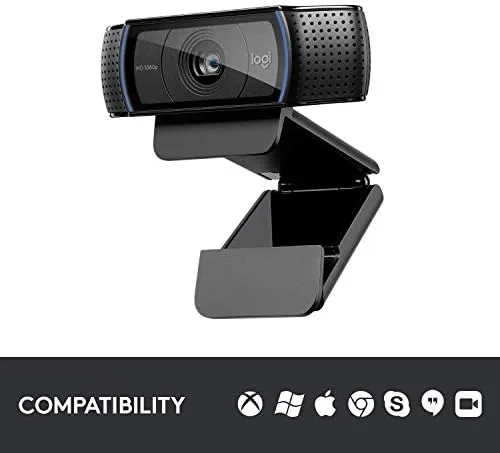
The C920 is a familiar shape: a rounded black lens at the front, a pair of microphones on the sides, and a flexible clip beneath, all wrapped in matte plastic. It is compact enough to sit on a monitor without dominating the line of sight, and the design has aged into a dependable, utilitarian look rather than a dated one. It reads as a tool, which is exactly what a webcam should be.
The mounting clip is the standout of the build. It opens wide enough to span a thick monitor and settles gently on a slim laptop lid, gripping an edge without scratching the screen. A steady collar and light, the whole unit feels solid in the hand, and there are no loose parts to jangle as it moves between the workstation and a second screen.
There is one small control, a matching section that holds the lens steady as it pans slightly for the best angle. The overall shape and the weight strike a balance that lets the camera sit still on the monitor while you shift in your chair, and that freedom means far less fiddle at the start of every call.
Key Features
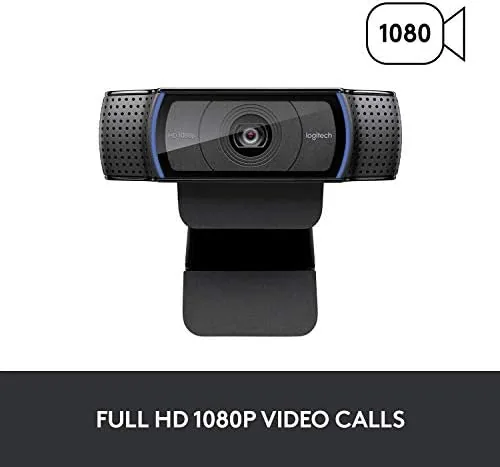
The central specification is full HD 1080p video at thirty frames per second. That is the sweet spot for video calls and for most streaming, since it balances a clear image with a smooth frame rate that does not load the machine. The widescreen angle frames a person and part of a desk comfortably, which suits the culture of a video meeting.
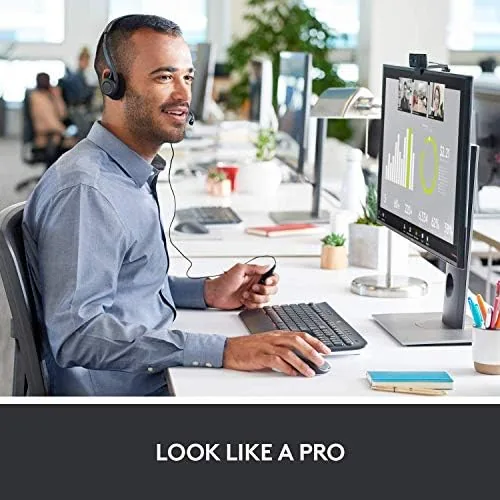
Autofocus is the feature that keeps the frame honest. As you lean forward or point to a screen, the C920 pulls the focus onto the subject, so a slight shift does not blur the face into the background. A low light correction working against the pull of a room's single lamp lends the image a steadier look when the office is dim.
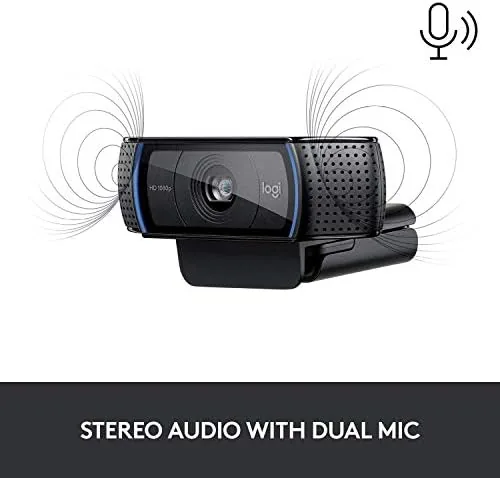
The dual stereo microphones are the part most desktop users overlook but rely on. They capture the voice with a wide, clear pattern and reject the hum of a fan or a keyboard, which means the built in audio is good enough that many people can skip a microphone in a call. A standard USB plug in, with no charging to manage, joins the C920 to any desk in seconds.
Real-World Performance
Day to day, the C920 disappeared into the flow of work the way a good accessory should. On video calls the picture was clear and sharp without the washed out look of laptop cameras, and the image held its color under the desk light. The frame stayed in focus as I moved, so my side of the meeting never looked anxious.
The audio made a real difference. My voice came through clean and the keyboard taps and the air fan stayed muted, which spared my assembled conversations. In a shared face to face check, the camera did the job without a separate microphone, and I only reached for a headset when I wanted a fuller sound to the desk.
The story repeated day after day without a stumble. I took calls in the morning light, meetings in the late afternoon, and streamed to a handful of friends one evening, and the image always looked right and the focus always recovered quickly. The mounting also proved easy to rearrange, since it popped off the monitor and onto a tripod thread in seconds, so a shift in the desk layout did not need a fresh lesson in setup.
It is not a 4K production camera, and these honest limits exist. If you need the crispest possible detail or a frame rate above thirty for fast content, the C920 gives up a little, but for the usual meeting and stream, the video underneath it was more than enough.
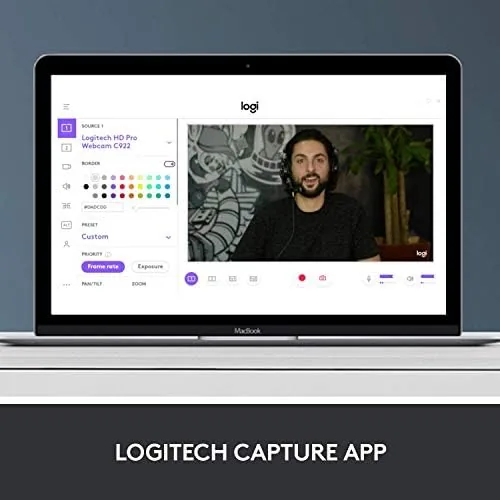
The C920 also played nicely with the software on my desk. It showed up as a reliable source in the meeting app, the recording tool, and a browser call without any hunting for a driver, and the settings I set in the Logitech app stayed between sessions. That consistent behavior removed the small frustrations of A Camera that re sorts its framing or drops its gain, and it meant the day began simply by picking up the screen.
Pros and Cons
Pros:
- Crisp 1080p video that looks sharp on calls and streams
- Autofocus that keeps the face steady as you move
- Good dual microphones with clear voice pickup
- Clip that mounts easily on monitors and laptops
- Fair price for the video quality
Cons:
- Limited to thirty frames for motion
- Compact plastic body is not a premium finish
- Requires a USB cable for every use
- No face-tracking to follow you across a room
How It Compares
The C920 sits among the best value webcams on a desk. Compared with the newer C922, it shares the same 1080p quality while giving up the faster frame rate and the background replacement, at a lower price. It is the calm choice for someone who wants reliable video and no extras.
| Feature | Logitech C920 | Logitech C922 |
|---|---|---|
| Resolution | 1080p | 1080p |
| Maximum frame rate | 30 fps | 60 fps |
| Autofocus | Yes | Yes |
| Built in microphones | Yes | Yes |
| Price | Lower | Higher |
For a home office that mostly requires clear calls and presentations, the C920 finishes slightly behind the C922 at a lower price. It does not chase the newest gimmick, it simply does the job with a reliability the market has tried to copy many times, without ever doing it at this cost.
Who Should Buy the Logitech C920
Buy it if you need a dependable, clear webcam for calls, meetings, tutoring, or a standard live stream, without paying for a feature you will not use. It is the right camera for the home office and the classroom desk.
Skip it if you produce 4K video or need the fastest frame rate for competitive motion. For everyone else, the price point of the C920 is hard to beat, and you can see the current options on the Logitech C920 listing on Amazon.
How We Test
I used the C920 for a full month on a working home desk, across the whole day, and for some streaming, judging the sharpness of the image, the autofocus, the low light behavior, the microphone quality, and the ease of plugging it into every machine.
The experience depends on your room and light, so your look may shift with your desk. A solid comparative look at webcams at TechRadar is a good second opinion before you buy.
For a closer look at the C920's sibling and the extra streaming feature, my C922 article covers the difference, and the full Logitech camera page on Amazon lists the bundle and the price today.
Logitech C920 HD Pro: Questions People Ask
Does the C920 need a driver?
No. The camera is recognized by Windows and Mac as soon as you plug in the cable, and Logitech offers free software for extra control if you want it.
Can it mount on a thin laptop?
Yes. The foldable clip grips the top edge of a monitor or a laptop without slipping, so it stays put even on a slim screen.
Is it good in low light?
Yes for most rooms. The C920 corrects the exposure to keep the face visible in dimmer light, which helps a home office without bright lamps.
Is 1080p enough for streaming?
For many streamers yes. The camera outputs clean 1080p at thirty frames, which suits a standard live stream or a video call very well.
As an Amazon Associate, I earn from qualifying purchases.