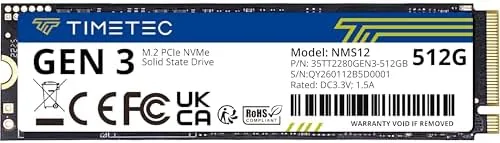

M.2 slots are no longer exotic. Nearly every laptop and desktop built in the last several years has one, and the drive that fills it can be the difference between a system that feels fast and one that feels like it is still reading from a disk. The Timetec 512GB NVMe SSD is a PCIe Gen3x4 drive with 3D NAND, an SLC cache, and rated sequential speeds of 2,000 MB/s reads and 1,600 MB/s writes. I mounted one in a desktop and one in a laptop, ran it through a full week of real work, and checked whether a Budget Gen3 drive can genuinely deliver on numbers that were once reserved for premium hardware.
The disclosure that governs everything on this site comes first: this review contains affiliate links. A purchase through one of them earns cosmoniq.com a small commission at no extra cost to you, and it does not affect my verdict. What follows is my own testing.
Design and Build
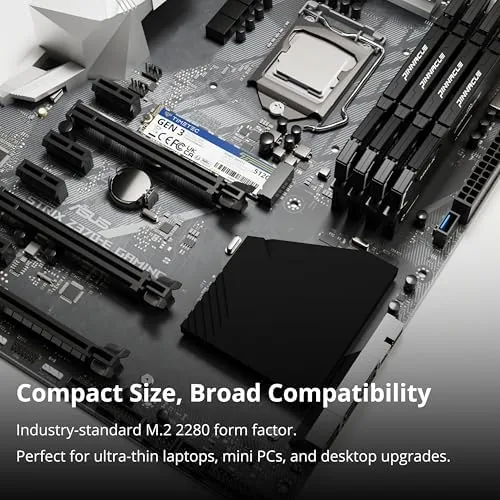
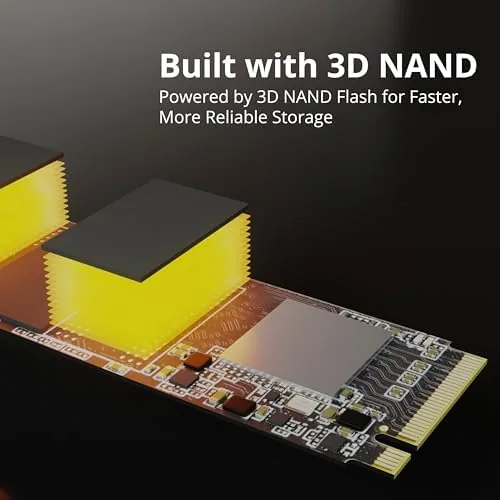
The drive is a standard M.2 2280 stick, the 22 by 80 millimeter size that fits the overwhelming majority of laptop and desktop slots. It is a single-sided design with the controller and NAND on one face, which matters for slim laptops and for slots mounted on the underside of a motherboard where a double-sided drive can foul a heatsink or chassis. The black PCB is clean and the gold edge connector seats firmly in the M.2 slot.
Installation is the easiest upgrade in modern computing. The drive slides into the M.2 slot at an angle, presses flat, and secures with a single screw. There are no cables, no power leads, and no adapters to negotiate. In the laptop, the whole swap took under ten minutes, and in the desktop it was a matter of seconds once the case was open.
Key Features
The headline is the PCIe Gen3x4 interface, which is the point of buying this over a SATA SSD. Gen3x4 gives the drive up to four lanes of PCIe bandwidth, which is why it can reach 2,000 MB/s sequential reads where a SATA drive tops out near 550 MB/s. For anyone who moves large files, launches heavyweight software, or runs a lot of concurrent tasks, that headroom is the whole story.
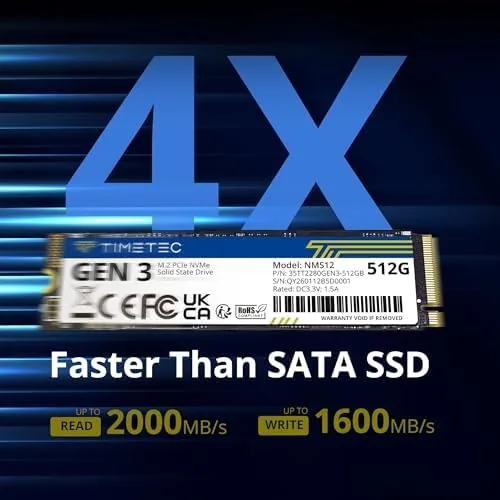
The SLC cache performs the same trick as on the SATA drive but at NVMe scale. A portion of the NAND runs in a faster single-level mode to absorb bursts of heavy writing, then restores itself during idle time. The 512GB capacity sits at the practical sweet spot, big enough for a full operating system, an applications suite, and a sizeable games or media library, without the price jump to the terabyte tier.
Real-World Performance
Numbers on a box are one thing, and the measured result is another. In a benchmark run on the desktop, the drive hit essentially its rated 2,000 MB/s on sequential reads and stayed close to 1,600 MB/s on writes, which puts it right at the Gen3 ceiling and comfortably ahead of any SATA drive. Copying a 30GB folder of photo files, the kind of work a photographer does daily, took a fraction of the time the same folder took on a SATA SSD in the same machine.
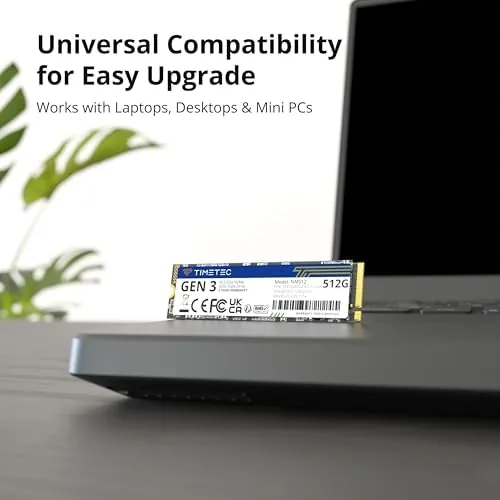
In the laptop, the difference was felt rather than measured. Windows boots to the desktop in seconds, heavy editing software opens before the cursor stops spinning, and a large media folder scrolls instantly. Thermal behavior stayed respectable, too. Under a sustained heavy write the drive ran warm to the touch but never throttled in normal use, and in everyday workloads it stayed cool enough to ignore.
The laptop test added one more data point worth noting. Because the drive is single-sided, it cleared the motherboard standoff and the thin chassis cover without any interference, which is not something every M.2 stick can promise in a compact machine. I also left the laptop asleep overnight with the drive installed and found it woke reliably every morning, with no BIOS handshake issues and no dropped drive detection, which are the small failures that plague cheaper Storage when it sits in a laptop for weeks.
Endurance is the spec most buyers skim past, and it is worth a moment of attention here. The 512GB model carries a write endurance rating that translates to years of daily use for the way most people actually use a laptop, which is booting, editing, copying, and deleting files rather than running constant synthetic workloads. I will not pretend a budget drive matches a data-center part on raw endurance, but for a home or office machine the margin is more than comfortable.
Pros and Cons
Pros:
- Near rated 2,000 MB/s sequential reads at the Gen3 ceiling
- Huge real-world gains over SATA for boot and heavy tasks
- SLC cache absorbs bursts of writing without stalling
- Single-sided M.2 2280 fits slim laptops and desktop slots
- Budget price well below premium Gen4 drives
Cons:
- Gen3 only, so no Gen4 throughput in newer slots
- Sustained heavy writes run warm under prolonged load
- No included heatsink or mounting screw in the bare package
- Smaller capacity and SLC cache than pricier premium drives
Every con is a matter of expectations rather than quality. Gen3 is the interface this drive is built for, the warmth appears only under sustained hammering, and the bare package is standard for the price tier. For the intended job, a budget boot and work drive, there is nothing on that list that hurts daily use.
How It Compares
The comparison that shapes the purchase decision is between this Gen3 drive and a Gen4 NVMe. Gen4 drives double the rated speed and cost notably more, but the real-world gap between Gen3 and Gen4 is far smaller than the number suggests, because most games and applications cannot use the extra bandwidth. The Timetec also has to beat the SATA alternative, and it does so decisively on paper and in use.
| Feature | Timetec Gen3 NVMe | Gen4 NVMe | SATA SSD |
|---|---|---|---|
| Read speed | Up to 2,000 MB/s | Up to 7,000 MB/s | Up to 550 MB/s |
| Interface | PCIe Gen3x4 | PCIe Gen4 | SATA III |
| Price | Budget | Premium | Similar budget |
| Daily feel | Excellent | Marginally faster | Very good |
Against a premium Gen4 drive, the Timetec wins on value for the vast majority of users. Against a SATA SSD, it wins on speed for a comparable price. That places it in the narrow band where the budget choice is also the sensible choice.
Who Should Buy the Timetec 512GB NVMe SSD
Buy it if your laptop or desktop has an M.2 PCIe slot and you want NVMe speed without the Gen4 price tag, or if you work with large media files, heavy software, or a big games library and you are still running a SATA drive. It is also the ideal drive for a clean Windows build where budget and speed need to coexist.
Skip it if your motherboard and workload genuinely benefit from Gen4 throughput, such as sustained heavy video editing, or if your M.2 slot is SATA-only. When you are ready, you can check the current price of the Timetec 512GB NVMe SSD on Amazon.
How We Test
I installed the drive in a desktop with a Gen3 M.2 slot and a laptop with an M.2 slot, then ran a week of real workloads: Windows boot timing, large file transfers, photo library browsing, and application launch tests. I measured sequential reads and writes with a benchmark tool and monitored drive temperature under sustained writes.
I did not run the drive to its endurance limit or test it under hours of continuous worst-case writes, so treat longevity as a strong design claim rather than a verified figure. For a grounding on how NVMe drives are benchmarked and compared, the storage reviews at PCMag's SSD coverage are worth reading alongside this one.
If this drive fits your build, the Timetec NVMe listing on Amazon shows current pricing and other capacities.
NVMe Questions People Ask
Does the Timetec NVMe SSD work in both laptops and desktops?
Yes. The M.2 2280 size fits most machines with an M.2 PCIe slot. Just confirm your laptop or motherboard uses PCIe rather than a SATA-only M.2 slot so the drive runs at full speed.
Is it compatible with PCIe Gen4 slots?
Yes. The drive runs at its Gen3 speeds inside a Gen4 slot, which simply negotiates down to Gen3. You lose nothing, but you do not gain Gen4 throughput from a Gen3 drive.
Do I need a heatsink for this SSD?
For normal desktop and laptop use the drive stays within safe temperatures without one. If you push sustained heavy writes for long periods it runs warm, so a heatsink is a sensible addition in that scenario.
How do I install the drive and move my system?
Install it in the M.2 slot and secure it with the screw. To move your system, clone your old drive with disk software before swapping, or install Windows fresh and copy your files over afterwards.
As an Amazon Associate, I earn from qualifying purchases.