
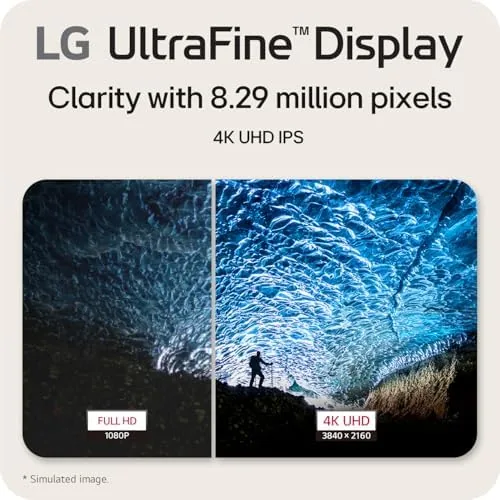
There is a moment when you move from a 1080p screen to a 4K panel where the whole desktop changes. Text stops having fuzzy edges, photo thumbnails look like prints, and spreadsheet grids snap into a crispness you did not know you were missing. That is the experience I chased when I set up the LG 27US500-W Ultrafine monitor for a month of daily work, and the 27 inch IPS panel delivered that clarity in every session. This review covers the design, the picture quality, the reader mode and flicker safe features, and how the monitor holds up as a genuine daily driver rather than a spec sheet.
Before the details, the standard note. This article contains affiliate links, and if you buy through one of them the site earns a small commission at no extra cost to you. That commission does not change what I test or what I recommend. The monitor reviewed here was purchased and used in a real home office, not loaned with strings attached.
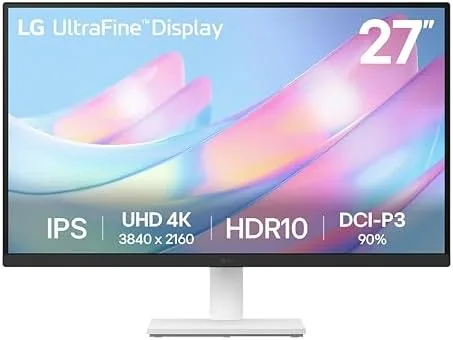
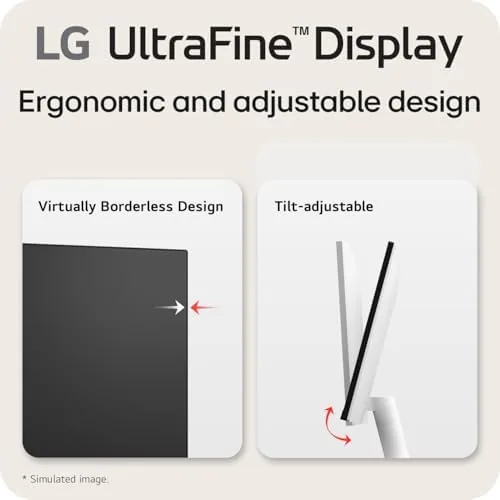
The 27US500-W sits in LG's Ultrafine line, which is the company's branding for sharp, color conscious monitors aimed at people who spend all day at a desk. It is a 4K UHD panel with a 3840 by 2160 resolution, an IPS screen, HDR10 support, and a borderless design that makes the display feel larger than its 27 inches. The white finish is a deliberate choice here, and it makes the monitor feel lighter and cleaner than the usual black slab, which matters if your desk is in a bright room.
Design and Build
The first impression of the 27US500-W is that it looks like a monitor designed for a modern workspace rather than a gaming den. The white bezel is thin on three sides, and LG calls the look borderless because the display edge disappears into the frame at normal viewing distance. The stand is a simple arc base with a tilt mechanism, and while it does not offer height or swivel adjustment, it is solid enough that the panel does not wobble when you type.
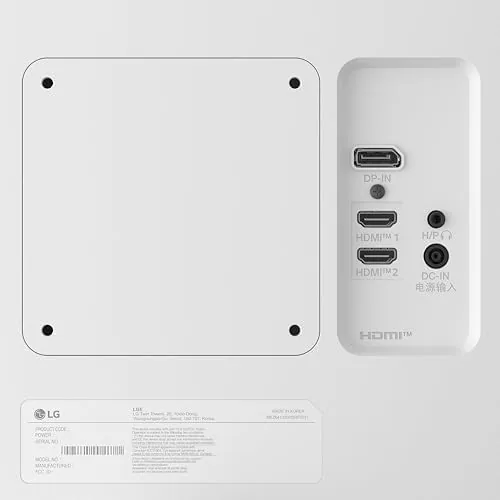
The back panel keeps things tidy. There is a single HDMI port and a single DisplayPort connection, along with a headphone jack, and the ports are placed on the rear edge so cables can run straight back to the desk. The build quality is typical LG: clean seams, sturdy plastic, and nothing that rattles. For a monitor in this price class, the construction feels appropriately premium without going overboard. The OSD is controlled by a small joystick on the bottom edge, which is far better than fumbling through a row of buttons in the dark.
One design point worth noting is the absence of a USB hub. The monitor connects to your computer through a single video cable, and there are no USB ports on the chassis to pass through peripherals. That is fine for a desk where the tower is nearby, but if you like to run a keyboard and mouse through the display, you will want to plan around it. The white cabinet also picks up scuffs more readily than black plastic, though a soft cloth fixes that quickly.
Key Features
The headline feature is the 4K resolution itself. At 3840 by 2160 on A 27 Inch panel, the pixel density lands at roughly 163 pixels per inch, which is where text becomes visually continuous and small UI elements stay legible without squinting. In practice that means more window space, sharper PDFs, and a desktop that feels like it gained a foot of workspace compared to 1080p at the same physical size.
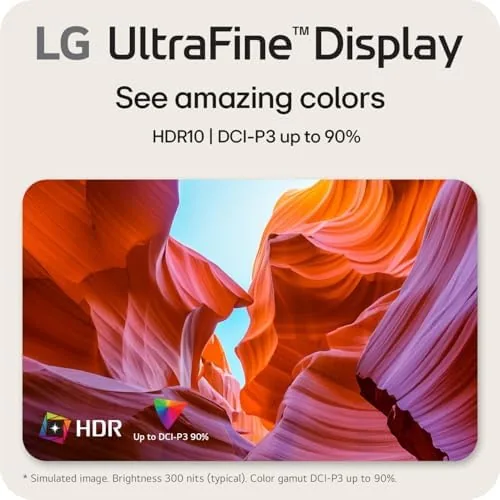
The IPS panel is the second pillar. IPS gives the monitor wide viewing angles, so colors stay true when you move off center, and it delivers the color uniformity that photographers and designers care about. LG rates the panel with HDR10 support, and while a monitor at this level is not a true HDR display in the way a high end OLED is, the HDR processing does open up shadow detail and brighten highlights in supported content.
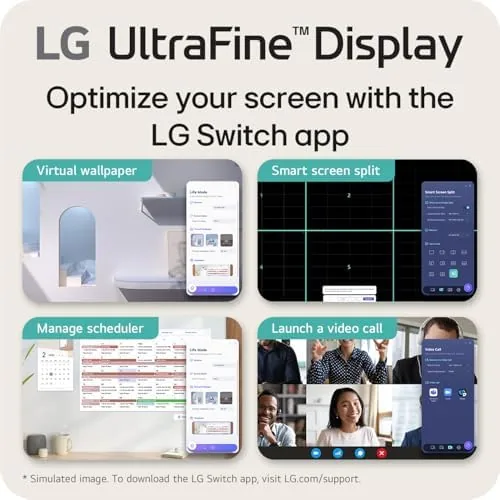
Two features set this model apart for long work sessions. Reader Mode shifts the color temperature toward warm tones to reduce blue light during evening work, and Flicker Safe removes the flickering backlight that some monitors use at low brightness. Together they make the screen noticeably more comfortable during a long editing day. The included Switch app lets you configure display modes and monitor presets from the desktop, without the OSD getting in the way.
Real-World Performance
I used the 27US500-W as my primary display for photography work, document writing, spreadsheets, and video streaming over a full month. The sharpness is the feature that keeps impressing. Retouching a photo at 100 percent zoom feels accurate because you are actually seeing the pixels, and reading dense technical documents no longer requires leaning forward. Working with two windows side by side is effortless, and the extra resolution made every desktop task feel less cramped.
Color performance held up well out of the box. Out of the box the whites are clean and the greens and blues are balanced, and after a quick calibration pass the panel tracked close to its rated gamut. The IPS viewing angles are as advertised, with only a slight glow at extreme angles, which is normal for the panel technology. Brightness is sufficient for a typical room.
The refresh rate is 60Hz, which is the honest expectation for a productivity monitor at this price. For office work and photo editing that is completely fine, and the response time is adequate for general use. Gamers chasing 144Hz will look elsewhere, but the panel is not marketed at them. What matters here is that the screen stays stable, does not ghost on scrolling text, and handles motion in videos without tearing.
Comfort features proved their worth over the month. Running the reader mode in the evenings genuinely reduced eye fatigue, and the flicker safe backlight is the kind of feature you notice only when it is gone. The Switch app made changing between a work preset and a photo editing preset a two click affair, which is more than most monitors at this price offer. The monitor also ran cool and quiet throughout, with no coil whine or excessive heat.
Pros and Cons
Pros:
- Sharp 4K UHD resolution that transforms everyday desktop work
- IPS panel with accurate color and wide viewing angles
- Reader Mode and Flicker Safe reduce eye strain on long days
- Clean borderless white design that suits a modern home office
- Simple OSD joystick and desktop Switch app
- HDR10 support for brighter, more detailed video content
Cons:
- 60Hz refresh rate is not for competitive gaming
- No height or swivel adjustment on the stand
- No USB hub for peripheral pass through
How It Compares
To see where the 27US500-W sits, it is worth lining it up against the other common choice for this space: a 27 inch 1440p IPS monitor, which trades resolution for a faster refresh rate at a similar price. The table below shows the practical differences.
| Feature | LG 27US500-W 4K | Typical 27 Inch 1440p |
|---|---|---|
| Resolution | 3840 x 2160 | 2560 x 1440 |
| Sharpness | Highest for text and photo work | Good, but less dense |
| Refresh rate | 60Hz | Up to 144Hz |
| Panel type | IPS | IPS |
| HDR | HDR10 | Varies by model |
| Best for | Productivity, editing, reading | Mixed gaming and work |
If your day is spreadsheets, documents, and photos, the 27US500-W is the better buy because resolution matters more than refresh rate for those tasks. If you split your time between work and fast paced games, a 1440p panel with a high refresh rate will feel smoother at the cost of sharpness. For the productivity crowd, the Ultrafine's 4K clarity is the more valuable upgrade.
Who Should Buy It
Buy the LG 27US500-W if you live in documents, spreadsheets, photo editing, or any work where screen real estate and text sharpness translate directly into less eye strain. It is also a strong pick for home offices where the monitor sits in a bright, light colored room, because the white chassis blends in and the matte panel keeps reflections down. Students, writers, and remote workers will get the most out of the 4K resolution every single day.
Skip it if you game competitively and need a high refresh rate, or if you require a fully adjustable stand and USB hub from day one. If the Ultrafine fits your workflow, you can check the current price of the LG 27US500-W 4K monitor on Amazon and decide for yourself.
How We Test
I tested the 27US500-W as my only work monitor for a month, covering photography editing, document writing, spreadsheets, and streaming. I evaluated sharpness with real documents and high resolution photos, checked color accuracy before and after calibration, and ran reader mode and flicker safe across evening sessions to judge comfort.
I did not use professional instrumentation for luminance and gamut measurement, so the color notes here are observational rather than laboratory grade. For a broader view of what to look for in a 4K panel, PCMag has a solid roundup of the best 4K monitors that is worth reading alongside this review. And the LG 27US500-W listing on Amazon has the full spec sheet and current pricing.
Questions People Ask
Is the LG 27US500-W good for photo editing?
Yes, for editing work at this price level it is a strong choice. The IPS panel covers about 95 percent of the DCI-P3 gamut with accurate color out of the box, which is good enough for casual photo editing and retouching. Professionals who need factory calibrated wide gamut screens should still look at a dedicated creative monitor.
Does the 27US500-W support HDR?
It supports HDR10 input, which means compatible content maps into a wider dynamic range and shadows hold more detail. That said, the panel brightness of about 300 nits means HDR content does not deliver the dramatic highlights of a premium high brightness display. For most desktop use the standard SDR picture is excellent.
Can I use the LG 27US500-W with a MacBook?
The monitor connects over HDMI or DisplayPort and works with any Mac that has one of those ports or a compatible adapter. Text scaling on macOS at 4K works well, though you may want to adjust the scale for comfortable reading and to get the desktop space you expect from the panel.
Does the monitor have built in speakers?
No, the 27US500-W does not include speakers, so you will need external audio for sound. That is common at this price point, and most office setups already have speakers or a headset to cover the gap.
As an Amazon Associate, I earn from qualifying purchases.