
A long day at a flat mouse can leave the wrist aching in a way that is hard to ignore and easy to put off. The Anker 2.4G Wireless Ergonomic Mouse tackles that problem by standing the hand up in a near vertical grip, so the forearm no longer has to twist to reach a low, flat ball. It connects wirelessly through a tiny USB receiver, offers a choice of pointer speeds, and runs on batteries for a long stretch. After a full week using it for daily office work, I can report that my wrist clearly preferred it to a standard mouse.
Before the click, the usual note: this article contains affiliate links. If you buy through any of them, this site earns a small commission at no extra cost to you, and it does not change what I test or what I recommend in this Anker ergonomic mouse review.
Design and Build
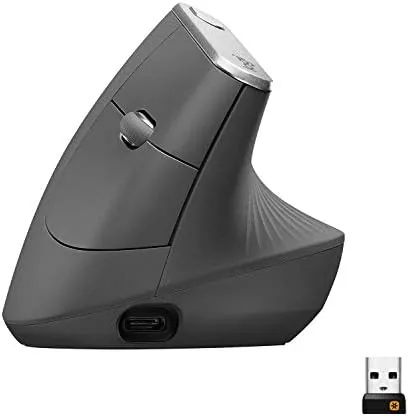
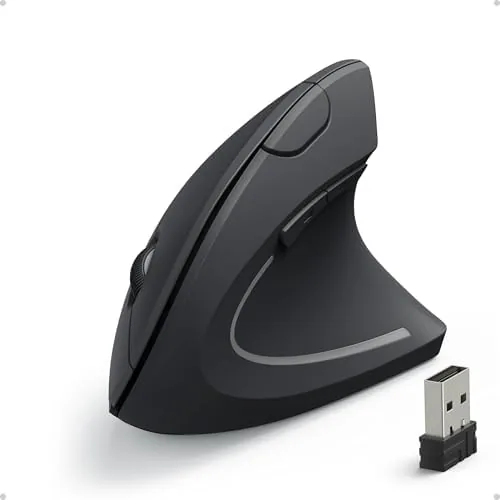
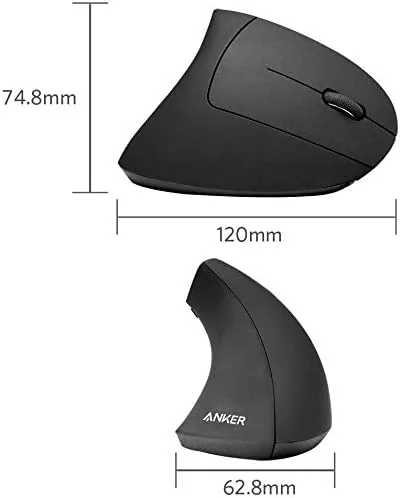
The most immediate impression is the shape. The Anker mouse rises at a steep angle so the hand rests on it as if shaking a hand, with the buttons on the upper slope and the palm pressing into a rounded back. This vertical angle keeps the wrist in a more neutral position than a flat mouse, which is the entire reason for its existence. The surface is a soft matte black that gives the hand a sure grip.
Build quality is reassuringly solid. The body is firm plastic with no creak when squeezed, the buttons press with a clear response, and the scroll wheel rolls with a soft notch. The right hand specific shape is clear in use, as the thumb area is shaped with a groove and the whole body tilts outward, which is how the neutral wrist position is achieved for a right handed user.
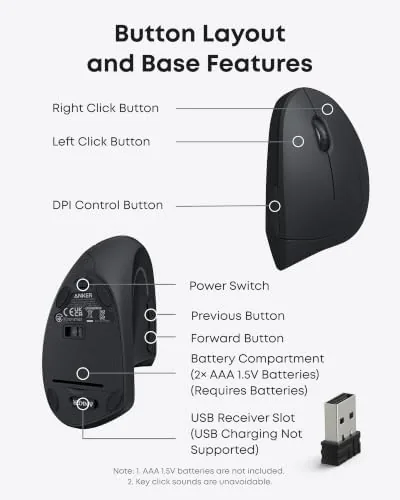
The receiver and power are handled neatly. The Mouse runs on a pair of AA batteries that go in a hatch on the underside, and the tiny USB receiver tucks into a compartment when not in use, so nothing is lost in the bottom of a bag. There is also a power switch to drop the link when the unit is parked, saving the batteries between workdays.
Key Features
The headline is the vertical ergonomic grip. Because the hand sits at roughly a handshake angle rather than flat, the muscles along the forearm and the wrist cuff stay in their natural alignment, which is why so many users with wrist strain report comfort in a vertical mouse. The contour under the palm gives a secure hold without forcing the fingers into a claw.
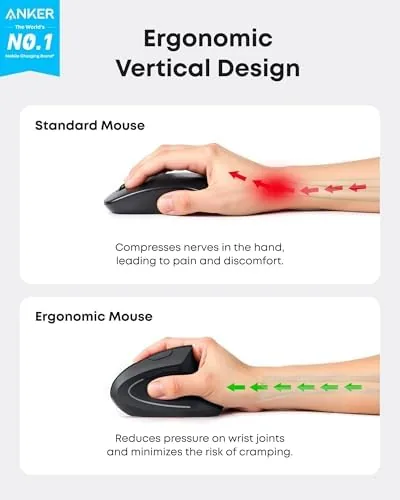
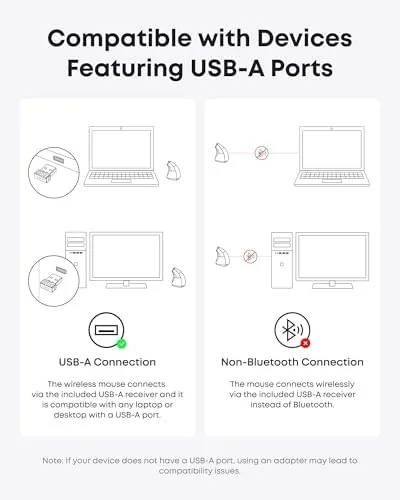
The 2.4G wireless connection keeps the desk free of a cord. A small USB receiver slides into a laptop or desktop and the mouse connects automatically, with no pairing ritual and no Bluetooth menu. The 2.4G band gives a lag free, responsive cursor for office work, and you move the mouse around its desk without being bound to the cable.
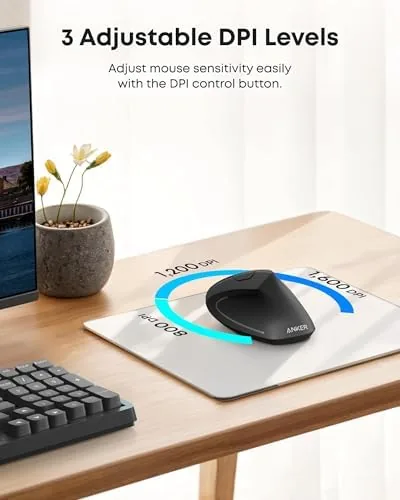
There are three pointer speeds to choose from. A small DPI switch on the body steps roughly between 800, 1200, and 1600 dots per inch, so you can slow the cursor for precise work like spreadsheets and speed it up for swiping across a big screen. The five buttons cover the left, right, the scroll click, and the two side buttons for quick back and forward.
Real-World Performance
I used the Anker mouse as my only pointer for a full week of office work, splitting the time between a desktop and a laptop. The most telling result was on the wrist: by Friday the familiar afternoon ache was much quieter than it is with my usual flat mouse, and the upright hold simply asked the arm to do less work all day.
The wireless link never once dropped in the week. The cursor followed the hand cleanly across documents, spreadsheets, and a long afternoon of forms, with no stall and no re-pairing. The receiver stayed seated and the battery supplied the session without any sign of running low across the whole test, so the performance side of the unit was completely dependable.
The DPI steps worked as expected. I kept the pointer on the 1200 setting for general work and dropped it for fine spreadsheet edits, and the change was immediate at the click of the button. Side buttons landed my web browser back and forward without reaching for the keyboard, which saved steady little trips during a busy morning.
The honest note is comfort, and comfort is personal. The upright angle felt natural to me and eased my wrist, but an ergonomic mouse asks your hand to learn a new grip, and the first couple of days take a little getting used to. If the angle suits your hand it is a genuine relief. If you prefer a low hand, give it the full first week before deciding.
Pros and Cons
Pros:
- Vertical grip holds the wrist in a neutral, comfortable angle
- Wireless 2.4G link with a tiny stored receiver
- Three DPI speeds suit both fine and broad pointer work
- Five buttons including back and forward shortcuts
- Long battery life on standard AA cells
Cons:
- Shaped for the right hand, not usable by a left handed grip
- Batteries are required and not included
- The new vertical angle takes a few days to feel natural
- Ergonomic relief is personal, not guaranteed for every hand
How It Compares
Set next to a standard flat USB Mouse, the Anker wins on wrist posture and loses on familiarity. The flat mouse is what every hand already knows, but it asks the wrist to lie flat, which is the very position ergonomic lovers want to avoid. The Anker trades that comfort for a short learning week and a noticeably happier wrist.
| Feature | Anker Ergonomic | Flat Wireless Mouse |
|---|---|---|
| Grip angle | Upright, neutral | Flat |
| Hand | Right hand only | Either |
| Connection | 2.4G receiver | 2.4G receiver |
| DPI steps | Three | Often one |
| Wrist relief | Designed in | None |
Against a vertical mouse that adds an adjustable DPI rail, the Anker keeps the price low while still covering the ergonomic need; the pricier models add more cycling and a higher speed range, which most office users will never touch. For a dependable, fairly priced upright mouse, the Anker covers the daily case completely.
Who Should Buy the Anker Ergonomic Mouse
Buy this mouse if you spend your day at a desk and your wrist has started to complain, if you want a more natural typing and pointing posture, or if you simply prefer a hand that is not forced flat. It suits the office worker, the home student with a long study block, and anyone who wants a safer seated shape than a standard pointer.
You can check the current price of the Anker ergonomic mouse at the vertical mouse on Amazon. If you are left handed, look for a mirror shaped model, since this one is built for the right hand only.
How We Test
I used the Anker vertical mouse as my only pointer for a week of full office hours, on both a desktop and a laptop, and I watched the wrist fatigue, the tracking consistency, the DPI change, and the battery draw. I paid special attention to the posture shift from a flat mouse to judge the relief honestly.
Ergonomic gear is covered well at sites such as PCMag, which tracks the best ergonomic mice and the science behind wrist posture. My week of office use grounds that guidance in a real hand and a real desk.
If you are weighing this against a flat mouse or a trackball, my everyday input guide covers the options, and the live Anker ergonomic mouse listing holds the current price and stock.
Anker Ergonomic Mouse: Questions People Ask
Is the Anker ergonomic mouse for left or right hands?
This model is shaped for the right hand. The vertical body tilts to one side and the buttons and grip are positioned for a right handed user, so someone left handed should look for a left-handed specific version.
What batteries does the mouse use?
It runs on a pair of AA batteries that are not included, so you will supply them before first use. In steady work a charge runs for a long stretch, and the power switch protects the batteries at night.
How do I change the DPI on the Anker mouse?
A switch on the body steps between three levels, roughly 800, 1200, and 1600. The change is instant, so you can slow the pointer for fine work and speed it up for the whole of a large screen.
Does it need the receiver in a dedicated port?
It uses a small 2.4G USB receiver that fits a normal USB port. Set the receiver into the computer and the mouse is ready, with no Bluetooth pairing and no software install required.
As an Amazon Associate, I earn from qualifying purchases.