
Everyone takes screenshots, but most people stop at the bare image. A screenshot that needs an arrow, a highlight, a blur over a name, or a cut section still needs editing, and the built in tools on Windows and macOS are limited. Snagit from TechSmith has spent years filling that gap, turning a simple capture into a finished, annotated image in one step. Snagit 2024 is the current release, sold as a one time license for PC and Mac with an online code delivery, and it adds refinements to an already mature product. I have spent two weeks using it for documentation, quick tutorials, and image cleanup on both platforms, and this is the honest record of whether the newest version earns its price.
Before the details, the standard note. This article contains affiliate links, and if you buy through one of them the site earns a small commission at no extra cost to you. That commission never changes what I test or what I recommend.
Design and Build
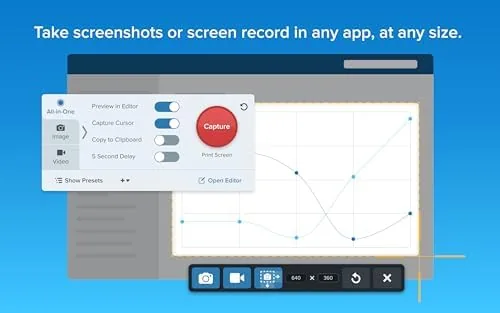
Snagit 2024 opens into a clean, familiar interface. The capture options live in a small toolbar, and the editor that follows every capture keeps the tools organized along the side and top. TechSmith has kept the layout consistent across versions, which means anyone who has used Snagit before will feel at home immediately, and new users will find the workflow obvious within minutes.
The application installs cleanly on both Windows and macOS, and the online code delivered by the seller redeems on the TechSmith site to activate the license. The installer is lean, with no bloatware and no forced account creation before you can capture, which is a refreshing contrast to some modern software. On both platforms the app sits quietly in the system tray or menu bar, ready to capture on a hotkey without slowing the system down.
The design philosophy is visible in every screen: capture first, edit second, and keep the distance between the two as short as possible. There is no modal setup wizard blocking the way, and the first capture works within seconds of installation. That immediacy is the core of what makes Snagit a daily tool rather than a once in a while utility.
Key Features
The headline feature is the capture engine, which goes far beyond a plain screenshot. Snagit captures a full screen, a specific window, a region, or a scrolling area, and it handles the scrolling capture that stymies most built in tools. A long web page or a tall settings window can be captured in full with a single action, producing a complete image that would take several manual shots and stitching otherwise.
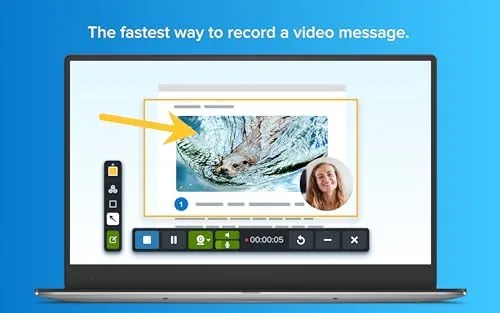
The video capture is the second feature worth calling out. Snagit records the screen with audio and optional webcam, which makes it a fast way to produce a short walkthrough without learning a video editor. The recorder captures a region or a window, records your narration, and drops the result into the same editor where you can trim the clip and add callouts. It is not a full video production suite, but it is exactly right for quick how to clips.
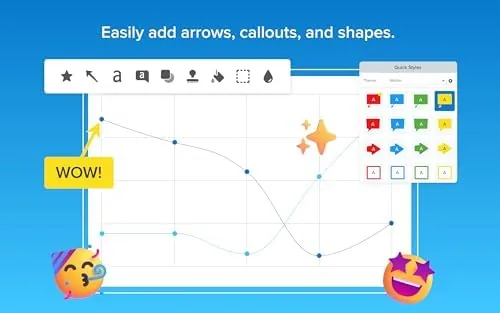
The editing toolkit is where Snagit separates itself from free tools. After a capture you can add arrows, text boxes, highlight, shapes, stamps, and a step numbering tool that is ideal for instructions. The text capture tool pulls text out of an image so you can paste it into a document, and the image cleanup tools handle tasks like removing a background or resizing. For a current look at the price and the licensing options for this release, the Amazon listing for Snagit 2024 is a useful reference.
Real-World Performance
I started with the daily documentation workflow: capturing a series of screenshots from a software interface and annotating them for a setup guide. The capture hotkey fired instantly, the region selection was precise, and the annotation tools laid down arrows and numbered steps cleanly on the first try. The step tool in particular made a multi step guide take minutes instead of the half hour it would have cost with manual editing.
The scrolling capture handled its toughest test, a very long settings page, without missing a section. The capture scrolled the page automatically, stitched the frames into a single image, and the result showed no visible seams or duplicate content. This alone is worth the price for anyone who writes documentation or shares full page comparisons, because the alternatives involve multiple screenshots and error prone assembly.
Video capture proved its value with a quick software walkthrough. I recorded a region while narrating, and the resulting clip captured the cursor movement, the clicks, and the audio clearly. The built in editor trimmed the dead space at the start and end, and I exported a finished MP4 in a couple of minutes. The quality is more than enough for tutorials, and the workflow removes the need for a separate recorder plus an editor.
The one honest frustration is the annual version churn. Snagit is a mature tool, and each new version adds refinements rather than revolutionary features, so the upgrade incentive is modest for someone on a recent release. The purchase here is a one time license for 2024 rather than a subscription, which is the right model for a tool that does not change dramatically year to year.
Pros and Cons
Pros:
- One time license with no subscription, rare in modern software
- Scrolling capture handles long pages cleanly with no seams
- Annotation tools are fast, including arrows and step numbers
- Video capture with narration covers short walkthroughs
- Text capture pulls copy out of images for reuse
- Same license works on both PC and Mac
Cons:
- Annual releases add refinements rather than major new features
- License activates on one platform, so choose Windows or Mac
- Full suite is overkill if you only need basic screenshots
- Online code delivery requires a TechSmith account to redeem
How It Compares
Screen capture tools fall into three groups: free built in utilities, freemium capture tools, and paid editors like Snagit. I compared Snagit 2024 against the built in Windows and Mac capture tools and a popular freemium capture app to see where the money goes.
| Feature | Snagit 2024 | Built In Snipping Tools | Freemium Capture App |
|---|---|---|---|
| License | One time purchase | Free | Free tier, paid pro |
| Scrolling capture | Yes, automatic | No | Limited in free tier |
| Annotation tools | Rich and fast | Basic | Good |
| Video with narration | Yes, built in | No | Often pro only |
| Text capture from image | Yes | No | Sometimes |
| Cross platform | PC and Mac | Platform specific | Varies |
| Best for | Documentation and tutorials | Quick shares | Casual capture |
Against the built in tools, Snagit wins on everything except price, with scrolling capture, rich annotation, and video being the clear advantages. Against a freemium app, Snagit wins on the scrolling capture and the one time price, since the freemium app's useful features often live behind a subscription. The built in tools are fine for the occasional quick share, and the freemium app suits casual use. For anyone who creates documentation or tutorials regularly, the Snagit workflow pays for itself quickly.
Who Should Buy It
Buy Snagit 2024 if you write documentation, build tutorials, create training material, share annotated screenshots at work, or record short walkthroughs for colleagues or customers. It is a strong pick for support staff, technical writers, and teachers who live in screenshots, and the one time license makes it a better long term value than a subscription tool.
Skip it if you take a screenshot a week and share it as is, since the built in tools cover that, or if you need a full video editor rather than a quick recorder. For anyone whose work depends on clear, annotated images, this is a tool that pays for itself. You can check the current price for Snagit 2024 on Amazon to see how the license compares.
How We Test
I tested Snagit 2024 over two weeks on both a Windows PC and a Mac. I used the region, window, and scrolling captures on live web pages and applications, built an annotated setup guide with the step and arrow tools, and recorded a narrated video walkthrough with the built in recorder. I used the text capture tool to pull copy from a screenshot and the editing tools to clean up a scanned image.
I did not test the advanced integration features with third party apps or the enterprise management tools, since those go beyond the core review. For broader perspective on screen capture software and its place in productivity workflows, independent coverage such as PCMag's roundup of screen capture tools provides useful context. The Snagit 2024 listing on Amazon shows the current price and delivery details.
Snagit 2024 Screen Capture: Questions People Ask
How do I receive the Snagit 2024 license after purchase?
The purchase delivers an online code by email, and you redeem it on the TechSmith site to download the installer and register your one time license. The redemption also requires a TechSmith account.
Does Snagit 2024 work on both Windows and Mac?
Yes. Snagit 2024 runs natively on PC and Mac, and the online code activates on the platform you choose at redemption time. I tested both installations in this review.
Can Snagit record video as well as take screenshots?
Yes. Snagit records your screen and webcam for short video walkthroughs, and you can annotate and trim the clip right in the editor. I recorded a narrated walkthrough and exported it as an MP4.
Is Snagit a subscription or a one time purchase?
Snagit is a one time purchase with a perpetual license, which makes it a cost effective pick compared to monthly subscription tools. The 2024 license activates on one platform per purchase.
As an Amazon Associate, I earn from qualifying purchases.