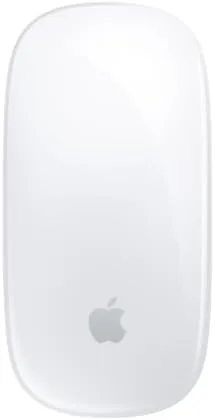

The mouse has always been the quietest part of a computer setup. It sits under the palm, it clicks, and nobody gives it a second thought until the cursor stops moving. Apple built the Magic Mouse around a different idea entirely. Instead of a scroll wheel and a pair of mechanical buttons, the entire top of the mouse is one continuous Multi-Touch surface, so a swipe of the finger scrolls a page, glides between tabs, and navigates the desktop without any moving parts at all. I used the white Magic Mouse for three weeks alongside a MacBook Pro and an iPad Pro, and this review records what that time taught me.
Before the details, the standard note. This article contains affiliate links, and if you buy through one of them the site earns a small commission at no extra cost to you. That commission does not change what I test or what I recommend, and the mouse reviewed here was used exactly the way an owner would use it.
The Magic Mouse is a study in small decisions. The smooth white glass top, the battery hidden out of sight, the single charge that lasts for weeks, all of it adds up to a pointer that asks for less attention than anything else on my desk. The sections below cover the design, the Multi-Touch surface, real-world use, and the honest limits of a mouse that a whole generation of Mac users either love or never try.
Design and Build
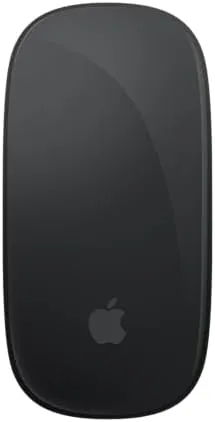
Look at the Magic Mouse and you will struggle to find the buttons. The top is one unbroken white surface, gently curved so the whole thing looks like a flat pebble resting on an aluminum base. There is no scroll wheel, no right button, no visible seam between the glass and the frame. The result is a mouse that disappears into a modern desk setup, especially on white or silver hardware, and that is clearly the point.
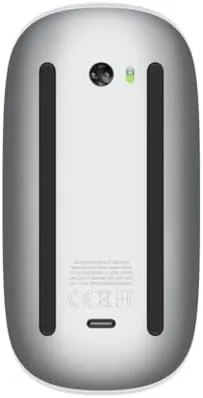
Flip it over and the story continues. A Bluetooth pairing switch sits near the bottom, and the charging port is tucked on the underside edge, a design choice that keeps the top clean and forces you to lift the mouse while it charges. The build quality is typical Apple: precise, solid, and free of wobble or creak. At just over a hundred grams it is light without feeling cheap, and the low profile means it slides naturally across a desk mat or a bare wooden surface.
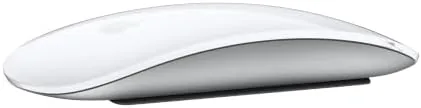
The white finish is the detail that divides opinion. It looks beautiful on a clean desk and matches the rest of Apple white peripherals, but it shows smudges faster than darker mice, and the Multi-Touch surface picks up fingerprints within an hour of work. A soft cloth solves the problem in a second, but it is worth knowing before you buy.
Key Features
The headline feature is the Multi-Touch surface, and it deserves the name. The entire top of the mouse detects your finger, which means a two finger swipe scrolls in any direction with the same fluid inertia that makes a trackpad feel natural. A light swipe flicks a long document with momentum, and a slower swipe moves through it line by line. Swiping two fingers left or right moves between pages in Safari or your browser history, and the whole surface clicks anywhere for a left click, while a right click works from the right side of the surface.
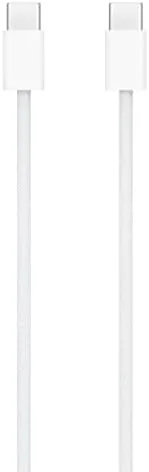
The battery system is the second feature worth talking about. The Magic Mouse recharges over USB-C and runs for about a month of typical use on a full charge, which means most people recharge it once a month at most. When the battery runs low, a two minute top up delivers several hours of use, so the mouse rarely leaves the desk for long. It pairs over Bluetooth, which keeps the desk free of receiver dongles, and it connects quickly to any Mac, iPad, or Windows computer in range.
Compatibility is broader than many people assume. The mouse works with iPad and iPadOS, which makes it a genuinely useful companion for an iPad Pro in a keyboard case, and it pairs with Windows machines for basic pointing and scrolling. The complete gesture vocabulary only unlocks inside macOS, so the true magic depends on which operating system sits on your desk.
Real-World Performance
Scrolling is where the Magic Mouse wins or loses people, and in my three weeks it won. The inertia-based scrolling is the closest thing to a trackpad experience in a mouse, and once you adjust to it, a standard wheel feels clumsy by comparison. Long articles, code files, and spreadsheets all glide under the finger, and the surface never catches or stutters the way a dirty wheel does. Two finger page swipes became a reflex within a day, and I found myself reaching for the mouse even when the MacBook trackpad was inches away.
The battery life held up exactly as advertised. I started with a full charge, worked a standard office schedule plus evenings, and the mouse was still at roughly half after three weeks. The USB-C port is genuinely convenient, since I could top it up with the same cable I use for the laptop, and the low battery warning in macOS gave me plenty of notice. Latency over Bluetooth was a non-issue in daily use; there was no noticeable lag in clicking, scrolling, or dragging windows.
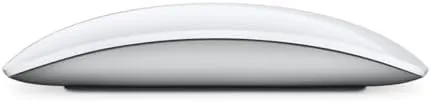
The honest limits showed up in two places. First, comfort. The flat, low profile is fine for most of a workday, but my hand began to feel the strain during a long editing session, and people with larger palms will likely find the Magic Mouse too flat and too small. Second, the charging port on the underside means you cannot use the mouse while it charges, which forces a short break if you forget to top it up overnight. Neither issue is a dealbreaker, but both are real and worth knowing.
One more observation from the testing window. The Multi-Touch surface never once misread a touch or registered a phantom scroll, which is the quiet reliability that earns trust. After three weeks of daily use, the glass top still felt as precise as day one, and the battery indicator still sat where I expected it. That consistency is the reason the Magic Mouse remains the default pointer for so many Mac users.
Pros and Cons
Pros:
- Smooth, trackpad-like inertial scrolling on a single surface
- Two finger page navigation that works in the browser
- About a month of battery life on a single charge
- USB-C charging with a quick top up for hours of use
- Clean Bluetooth pairing with Mac, iPad, and Windows
- Beautiful, minimal design that fits a modern desk
Cons:
- Low flat profile is not comfortable for every hand size
- White surface shows smudges and fingerprints quickly
- Cannot be used while the battery is charging
- Full gestures only work inside macOS
How It Compares
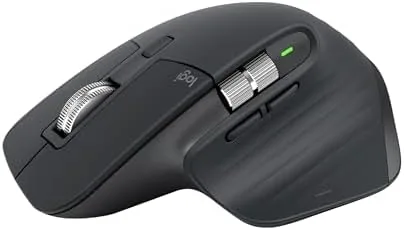
The main alternative for most people is a full-featured Ergonomic Mouse, and the Logitech MX Master 3S is the usual comparison point. The table below lines up the two.
| Feature | Apple Magic Mouse | Logitech MX Master 3S |
|---|---|---|
| Input method | Multi-Touch surface | Wheel, buttons, thumb gestures |
| Ergonomics | Low and flat | Tall and sculpted |
| Battery | Rechargeable, about a month | Rechargeable, about 70 days |
| Charging | USB-C on the underside | USB-C on the front edge |
| Best for | Mac users who love gestures | Long sessions, multi device work |
If your day is built around macOS and you love fluid, gesture-driven control, the Magic Mouse is the more elegant choice. If you sit at a desk for eight hours and need the support of a sculpted shape with a real wheel, the MX Master class of mice serves you better. The right answer depends entirely on your hand and your habits.
Who Should Buy It
Buy the Magic Mouse if you live in the Apple ecosystem, appreciate the gesture language of a trackpad, and want that same feel in a mouse you can use on any surface. It is an excellent match for writers, editors, and designers who scroll constantly, and for iPad users who want a proper pointer on a desk setup. It is also the obvious choice for anyone who values a clean, minimal desk over a wall of buttons.
Skip it if you suffer from wrist strain and need an ergonomic shape, if you prefer a physical scroll wheel, or if you do most of your work on Windows where the gestures disappear. For everyone else, the Apple Magic Mouse White is available on Amazon and worth a serious look.
How We Test
I used the Magic Mouse as my primary pointer for three weeks across a MacBook Pro and an iPad Pro, mixing office work, long-form reading, spreadsheets, and light photo editing. I charged it from empty, tracked battery drain across the period, and tested pairing and gestures on both macOS and iPadOS. I also ran a short session on a Windows laptop to confirm basic compatibility.
I did not test the mouse in a Windows-first workflow, and I evaluated comfort based on my own hand over full workdays rather than a panel of users. For a deeper look at how the Multi-Touch surface and gestures behave across Apple devices, The Verge has covered the Magic Mouse extensively. The current price of the Magic Mouse on Amazon is worth checking before you decide.
Apple Magic Mouse: Questions People Ask
How long does the Apple Magic Mouse battery last?
A full charge lasts about a month of typical use, and a quick two minute top up with the USB-C cable delivers enough power for several hours of work.
Does the Magic Mouse work with iPad and Windows?
It pairs over Bluetooth with iPad and Windows computers, but the full Multi-Touch gesture set only comes alive inside macOS.
Is the Magic Mouse comfortable for all-day work?
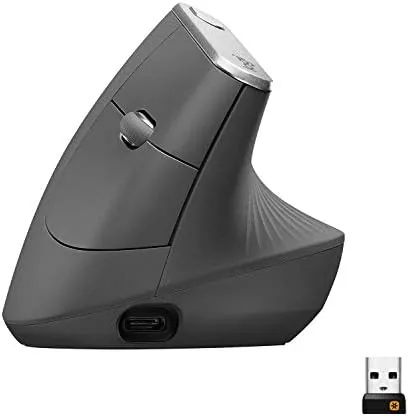
The low rounded profile suits many hands, though people with larger palms often reach for a taller vertical mouse during long sessions.
How do you charge the Apple Magic Mouse?
Connect the USB-C cable to the port on the underside of the mouse, and the battery fills while the pointer remains fully usable on a desk.
As an Amazon Associate, I earn from qualifying purchases.