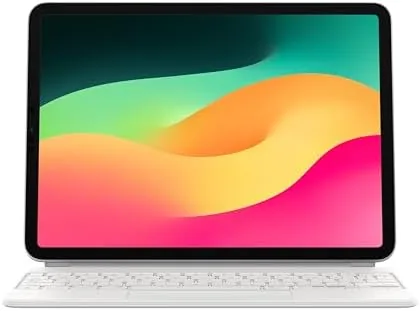

There is a moment every iPad owner hits when a tablet keyboard stops being a nice extra and becomes a necessity. You are drafting a long document on the couch, or answering a full inbox, and the on screen keys simply run out of room. The Apple Magic Keyboard exists for that moment. It attaches to the iPad Pro 11 inch and the iPad Air through magnets, adds a real trackpad and a backlit keyboard, and turns a tablet into something that behaves like a laptop. I have used it daily for a month, and this review covers what works, what does not, and where the money actually goes.
Before the details, the standard disclosure. This article contains affiliate links. If you buy through one of them, I earn a commission at no extra cost to you. That does not change what I say here, and my opinions are my own after living with the product.
Design and Build
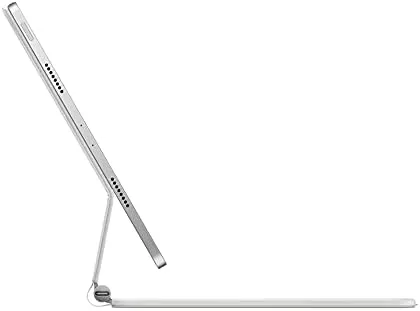
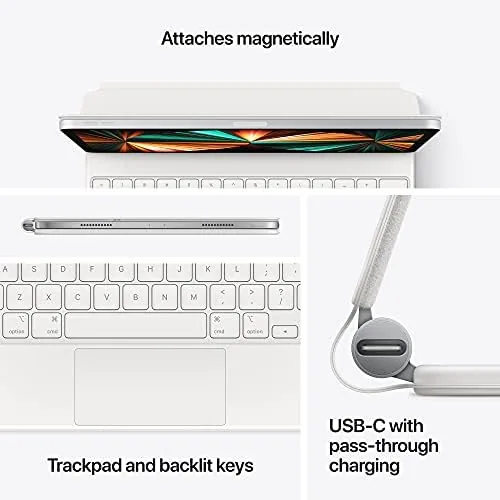
The Magic Keyboard is a study in precision engineering. The body is wrapped in a soft, grippy material that feels good against a table and stays put on a lap. The signature element is the floating cantilever hinge, which holds the iPad suspended above the keyboard deck and lets you tilt the screen to any angle between a shallow lean and nearly vertical. It is the same visual trick Apple uses on its laptop line, and it makes the whole assembly feel like one solid machine rather than a tablet propped on a stand.
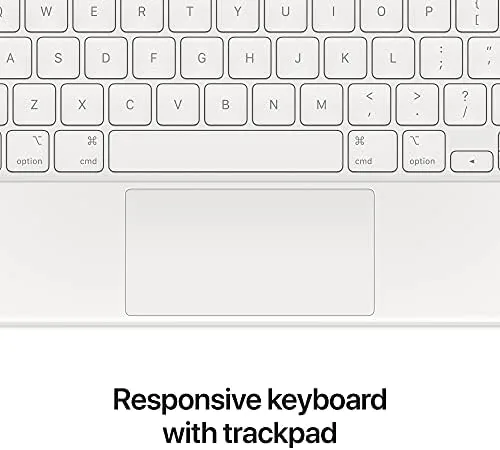
The keyboard itself is a scissor mechanism with backlit keys. Travel is shallow but precise, and the response is firm without being noisy. The trackpad sits below the space bar and supports the full range of iPadOS pointer gestures, including cursor control, two finger scrolling, and the tap to click that feels native once you adjust to it. Around the back, a USB C port on the hinge passes power through so the iPad charges while it is docked, which removes one cable from your desk entirely.
The material choices deserve a closer look because they determine how the case ages. The exterior is a soft touch fabric that wraps around the edges, and it survived a month of daily handling without visible wear or staining. The underside has a hard shell with rubber grips in the corners, which keep the case from sliding on a smooth desk. The keyboard surface resists the greasy shine that older laptop keyboards develop, so the White finish stayed clean throughout my review, which is more than I can say for many light colored devices.
Key Features
The headline feature is the built in trackpad. It does not behave like a laptop trackpad bolted onto a tablet; it behaves like the pointer system iPadOS always wanted. The cursor snaps to text fields, transforms into a text selection tool over paragraphs, and responds to swipe gestures that feel instant. If you have avoided iPads for productivity because of the lack of a cursor, this is the accessory that removes that objection.
Connectivity is effortless because there is none to manage. The keyboard attaches through the smart connector on the back of the iPad, which supplies both power and data. There is no Bluetooth pairing, no charging the case, and no battery to worry about. Open the iPad like a laptop and it is instantly awake and connected. Add in the backlit keys, which auto adjust based on ambient light, and the physical function row for brightness and volume, and you have a case that covers nearly every laptop comfort.
Real-World Performance
Typing on the Magic Keyboard is the closest a tablet gets to a MacBook feel. My sustained typing speed landed within a few words per minute of my usual laptop pace, and the shallow travel never caused the fatigue I expected over long sessions. The key layout is full size, with a good spread, and the space bar and return key respond consistently. For anyone who writes for a living, this is a genuine upgrade, not a compromise.
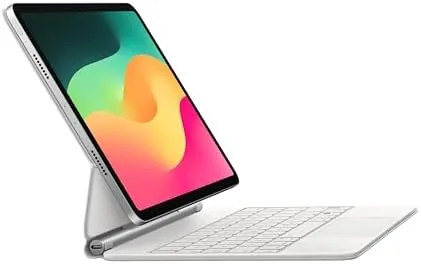
The trackpad was the surprise. Cursor speed felt slightly slow at first, but a quick trip into iPadOS settings fixed that, and after a day the gestures became muscle memory. Two finger scroll is smooth, three finger swipes switch apps without hesitation, and the trackpad holds its calibration through the floating hinge even when the iPad is tilted far back. The hinge itself is remarkably stable; I bounced the assembly on my lap during a bumpy commute and the screen did not wobble.
Battery life deserves a mention. Because the keyboard draws power from the iPad, there is no separate battery to charge. My iPad battery drain with the Magic Keyboard attached was modest, roughly on par with using the tablet bare, and the pass through USB C port means the whole unit charges with one cable. The one downside is weight. The Magic Keyboard adds a noticeable amount of mass, and combined with the iPad it feels heavier than a typical thin and light laptop, which matters if you carry it all day.
I also want to address a question that comes up constantly in buyer discussions: how does the Magic Keyboard handle the angles people actually use? The floating hinge lets the screen sit at a Comfortable viewing angle for typing at a desk, and it can lean further back for reading or video. It does not fold flat, so you cannot lay the screen back against the keyboard the way you can with a folio case. That is the one posture compromise, and it is worth knowing before you buy if drawing is part of your routine.
Pros and Cons
Pros:
- Built in trackpad with full iPadOS pointer support
- Backlit scissor keyboard with a laptop like feel
- Floating hinge allows smooth angle adjustment without a kickstand
- USB C pass through charges the iPad while docked
- Magnetic smart connector means no pairing or charging the case
Cons:
- Heavier than most thin and light laptops once attached
- Premium price compared with third party keyboards
- Only supports the 11 inch iPad Pro and iPad Air models listed
How It Compares
The most common alternative is a third party keyboard case with a trackpad, usually at a fraction of the price. To make the trade off concrete, I set the Magic Keyboard against a representative Bluetooth trackpad keyboard case. The comparison focuses on the things that decide whether you will enjoy using the iPad daily.
| Feature | Apple Magic Keyboard | Third Party Trackpad Case |
|---|---|---|
| Connection | Smart connector, no pairing | Bluetooth pairing required |
| Keyboard power | Powered by the iPad | Separate rechargeable battery |
| Backlight | Auto adjusting | Often manual or absent |
| Trackpad gestures | Full iPadOS integration | Partial or basic support |
| Hinge stability | Floating cantilever, very stable | Varies, often less stable |
| Price | Premium | Budget friendly |
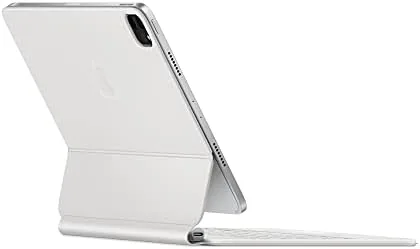
The gap is not in typing, where many third party boards feel fine. The gap is in integration. The smart connector connection never drops, the backlight follows the room, and the trackpad talks to iPadOS natively instead of emulating a mouse. If you need a keyboard for occasional note taking, save the money. If you plan to use the iPad as a laptop substitute, the Apple version earns its price.
Who Should Buy It
Buy the Magic Keyboard if you do real writing on your iPad, if you want a true pointer without carrying a mouse, or if you have been frustrated by Bluetooth keyboards that disconnect at the worst moment. It is also the right choice for students and professionals who travel with one device and need laptop grade input without the laptop.
Skip it if your iPad time is mostly video, reading, and drawing, where the keyboard adds weight you will not use. For the rest, this is the closest thing to a MacBook that an iPad can be. You can check the current Apple Magic Keyboard price on Amazon to see today's deal before you decide.
How We Test
I used the Magic Keyboard daily for four weeks as my primary writing setup. I typed long documents, took notes in meetings, and used the trackpad for general navigation, including web browsing and document editing. I tracked typing speed and error rate against my laptop baseline, and I paid attention to how the hinge held up across desk, lap, and travel use.
I also tested the pass through charging behavior and the backlight across light and dark rooms. For a second opinion on the broader iPad keyboard landscape, The Verge's hands on assessment of the Magic Keyboard provides independent perspective on how it compares with alternatives. The Magic Keyboard listing on Amazon has full compatibility details and the latest price.
Questions People Ask
Does the Apple Magic Keyboard work with the iPad Pro 11 inch?
Yes. This version is built for the iPad Pro 11 inch across the first, second, third, and fourth generations, and it also fits the iPad Air 4th, 5th generation, and M2 models listed on the product page.
Can I charge the iPad while it is in the Magic Keyboard?
Yes. The USB C port on the hinge passes power through to the iPad, so you can charge the whole assembly with a single cable while typing.
Does the Magic Keyboard add a lot of weight?
It adds noticeable mass. Combined with the iPad, the setup weighs more than a typical thin and light laptop, so factor that in if you carry it daily in a backpack.
Is the keyboard backlit?
Yes, the keys are backlit and the brightness adjusts automatically to ambient light, which makes late night typing comfortable.
As an Amazon Associate, I earn from qualifying purchases.